 ADevGuide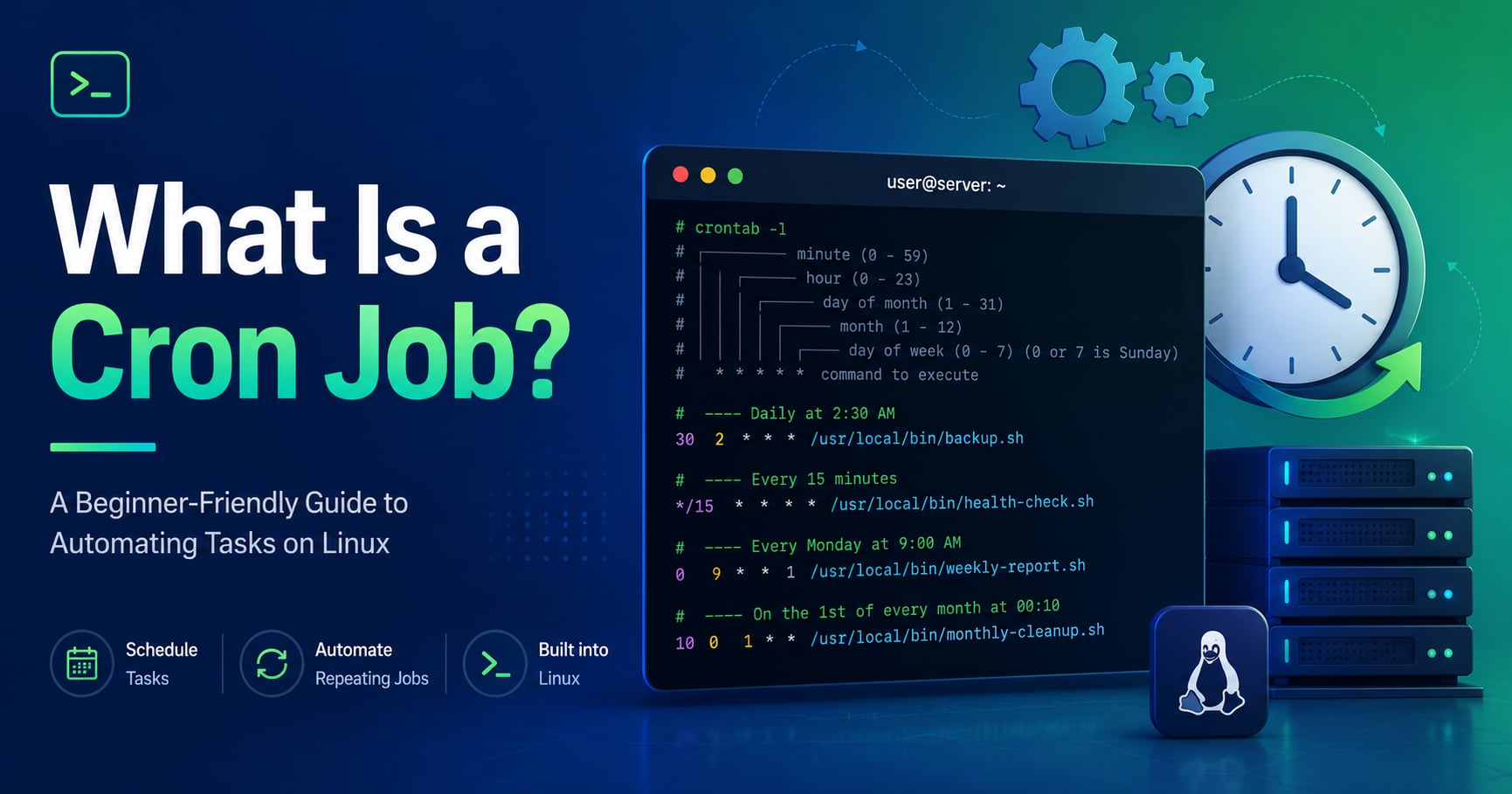
Your server needs to back up the database every night at 2 AM, clean up temporary files every hour, and send a weekly report every Monday morning. You could set a reminder and run each command manually, but that is unreliable and does not scale. A cron job solves this by letting you schedule commands to run automatically at specified times, without any human intervention.
This guide explains what a cron job is, how cron syntax works, and how to create and manage scheduled tasks in Linux. If you are following the learning path, read How Background Jobs Work in Web Applications and What Is a Message Queue? Simple Explanation with Examples first. For the broader roadmap, use the Practical Backend Engineering series as the pillar page and the System Administration tag as the category page.
Table of Contents
Open Table of Contents
- What Is a Cron Job?
- How Cron Works Behind the Scenes
- Understanding Cron Syntax
- Special Characters in Cron
- Common Cron Schedules
- How to Create and Edit Cron Jobs
- Practical Cron Job Examples
- Environment Variables in Crontab
- Logging Cron Job Output
- Cron vs Systemd Timers vs Task Schedulers
- Security Considerations
- Common Mistakes and How to Avoid Them
- Real-World Examples
- Interview Questions
- 1. What is the difference between a cron job and a background job?
- 2. Why does my script work manually but not from cron?
- 3. What happens if a cron job overlaps with the next scheduled run?
- 4. How do cron and systemd timers differ?
- 5. What is the difference between
* * * * 1-5and0 9 * * 1-5? - 6. How can I prevent my cron job from sending emails?
- Conclusion
- References
- YouTube Videos
What Is a Cron Job?
A cron job is a scheduled task that runs automatically at specified times on Unix-like operating systems. The name comes from “chronos,” the Greek word for time. Cron is the daemon (background service) that reads your schedule and executes the commands you define.
Think of it like setting an alarm on your phone. Instead of waking you up, it runs a shell command, script, or program. Once configured, the cron daemon checks every minute whether any job is due and executes it without prompting you.
What Cron Is Good At
Cron handles repetitive, time-based tasks well:
- Database backups running nightly at 2 AM
- Log rotation clearing old log files weekly
- Report generation sending emails every Monday at 9 AM
- System maintenance cleaning temp files hourly
- API synchronization fetching external data every 15 minutes
- Certificate renewal checking SSL expiry daily
What Cron Is Not
Cron is not a full-featured job scheduler with dependency management, retry logic, or a visual dashboard. It does not persist job history in a database, and it does not handle overlapping executions well out of the box. For those needs, tools like systemd timers, Apache Airflow, or BullMQ are better suited. Cron excels at simplicity and reliability for straightforward time-based automation.
How Cron Works Behind the Scenes
When you create a cron job, you are writing an entry into a file called the crontab (cron table). The cron daemon (crond) runs continuously in the background, checking the crontab files every minute and executing any jobs whose schedule matches the current time.
Here is the flow:
flowchart TD
    A[Cron Daemon starts] --> B[Waits for next minute]
    B --> C{Any jobs due?}
    C -->|No| B
    C -->|Yes| D[Execute command]
    D --> E[Log output]
    E --> B
    D --> F[Send email if MAILTO set]
    F --> B
The daemon operates as follows:
- At system boot, the cron daemon starts and runs continuously as a background service
- Every minute, it reads all crontab files (system-wide and per-user)
- It compares the current time against each job’s schedule
- If the schedule matches, it spawns a shell process to execute the command
- Any output (stdout or stderr) is either mailed to the user or discarded, depending on configuration
You can verify the cron daemon is running with:
ps aux | grep cronIf you see output like root 617 0.0 0.0 9420 2800 ? Ss 17:00 0:00 /usr/sbin/cron -f, cron is active. If not, start it with:
sudo systemctl start cron
sudo systemctl enable cron
Understanding Cron Syntax
Every cron job follows a five-field format. Each field represents a unit of time, and together they define when the command runs.
┌───────────── minute (0-59)
│ ┌───────────── hour (0-23)
│ │ ┌───────────── day of month (1-31)
│ │ │ ┌───────────── month (1-12)
│ │ │ │ ┌───────────── day of week (0-6, 0=Sunday)
│ │ │ │ │
* * * * * command to execute
Field Breakdown
| Field | Allowed Values | What It Controls |
|---|---|---|
| Minute | 0-59 | The minute of the hour the job runs |
| Hour | 0-23 | The hour of the day the job runs |
| Day of Month | 1-31 | The day of the month the job runs |
| Month | 1-12 (or JAN-DEC) | The month of the year the job runs |
| Day of Week | 0-6 (or SUN-SAT, 0=Sunday) | The day of the week the job runs |
Reading a Cron Expression
Consider this schedule: 30 2 * * *
- Minute: 30
- Hour: 2
- Day of Month: * (every day)
- Month: * (every month)
- Day of Week: * (every day of the week)
This means “run at 2:30 AM every day.”
Another example: 0 9 * * 1-5
- Minute: 0
- Hour: 9
- Day of Month: * (every day)
- Month: * (every month)
- Day of Week: 1-5 (Monday through Friday)
This means “run at 9:00 AM every weekday.”
Special Characters in Cron
Cron supports four special characters that make scheduling flexible.
Asterisk * - Matches Every Value
An asterisk in any field means “every” value of that field.
* * * * *    # Every minute of every hour of every day
0 * * * *    # Every hour at minute 0 (top of the hour)
Comma , - List of Values
A comma separates multiple specific values.
0 9,12,18 * * *     # At 9 AM, 12 PM, and 6 PM
0 0 * * 1,3,5       # At midnight on Monday, Wednesday, Friday
Hyphen - - Range of Values
A hyphen defines a contiguous range.
0 9-17 * * 1-5      # Every hour from 9 AM to 5 PM, weekdays
0 0 1-7 * *         # At midnight on the first 7 days of every month
Slash / - Step Values
A slash defines an increment or step interval.
*/15 * * * *        # Every 15 minutes (0, 15, 30, 45)
0 */4 * * *         # Every 4 hours (0:00, 4:00, 8:00, ...)
0 9-17/2 * * 1-5    # Every 2 hours from 9 AM to 5 PM, weekdays
Common Cron Schedules
These are the schedules developers use most often.
| Schedule | Cron Expression | Description |
|---|---|---|
| Every minute | * * * * * | Runs every minute |
| Every 5 minutes | */5 * * * * | Runs at 0, 5, 10, 15, … minutes |
| Every hour | 0 * * * * | Runs at minute 0 of every hour |
| Daily at midnight | 0 0 * * * | Runs at 12:00 AM every day |
| Daily at 2:30 AM | 30 2 * * * | Runs at 2:30 AM every day |
| Weekly Sunday midnight | 0 0 * * 0 | Runs every Sunday at 12:00 AM |
| Monthly 1st at midnight | 0 0 1 * * | Runs on the 1st of every month |
| Weekdays at 9 AM | 0 9 * * 1-5 | Runs Monday through Friday at 9 AM |
| Every 15 minutes | */15 * * * * | Runs at 0, 15, 30, 45 minutes past each hour |
Shorthand Strings
Most cron implementations also accept shorthand strings instead of the five fields:
| String | Equivalent | Description |
|---|---|---|
@reboot | - | Run once at system startup |
@hourly | 0 * * * * | Run once an hour |
@daily | 0 0 * * * | Run once a day at midnight |
@weekly | 0 0 * * 0 | Run once a week on Sunday |
@monthly | 0 0 1 * * | Run once a month on the 1st |
@yearly | 0 0 1 1 * | Run once a year on January 1st |
How to Create and Edit Cron Jobs
Step 1: Open the Crontab Editor
Each user has their own crontab file. To edit it:
crontab -eThe first time you run this, you may be prompted to choose a text editor. Select nano for simplicity or vim if you prefer.
Step 2: Add a Cron Job
Add a line following the five-field format. For example, to back up a database every night at 2:30 AM:
30 2 * * * /usr/local/bin/backup-database.shStep 3: Save and Exit
Save the file. Cron automatically installs the updated schedule.
Useful Crontab Commands
crontab -l          # List your current cron jobs
crontab -r          # Remove all cron jobs (use with caution)
crontab -e          # Edit your crontab
sudo crontab -e -u username   # Edit another user's crontab (requires root)
System-Wide Cron Jobs
Instead of per-user crontabs, you can place scripts in system directories that cron checks automatically:
/etc/cron.d/- Drop individual job files here/etc/cron.daily/- Scripts here run once a day/etc/cron.hourly/- Scripts here run once an hour/etc/cron.weekly/- Scripts here run once a week/etc/cron.monthly/- Scripts here run once a month
System-wide jobs run as root by default unless you specify a user.
Practical Cron Job Examples
Run a Script Every 5 Minutes
*/5 * * * * /usr/local/bin/check-service-status.shBackup a Database Daily at 2:30 AM
30 2 * * * /usr/local/bin/backup-mysql.sh >> /var/log/db-backup.log 2>&1Send a Report Every Monday at 9 AM
0 9 * * 1 /usr/local/bin/send-weekly-report.shClean Temporary Files Hourly
0 * * * * find /tmp -type f -mtime +1 -deleteSync Data Every 15 Minutes
*/15 * * * * /usr/local/bin/sync-external-data.shRun a Job Only on Weekdays
0 8 * * 1-5 /usr/local/bin/weekday-task.shRun a Script on System Boot
@reboot /usr/local/bin/startup-initialization.shRun a PHP Script Every 15 Minutes
*/15 * * * * /usr/bin/php /var/www/html/scripts/cron.phpEnvironment Variables in Crontab
Cron does not load your shell’s environment. This means variables like $PATH, $HOME, and any custom exports you set in .bashrc are unavailable. This is one of the most common reasons cron jobs fail silently.
Set PATH in Crontab
Add this at the top of your crontab:
PATH=/usr/local/sbin:/usr/local/bin:/usr/sbin:/usr/bin:/sbin:/binSet MAILTO for Notifications
MAILTO=[email protected]When a cron job produces output, it will be emailed to this address. If you do not want emails, set MAILTO="".
Set a Custom Shell
SHELL=/bin/bashUse Full Paths in Commands
Always use absolute paths in cron jobs. Instead of:
backup.shWrite:
/usr/local/bin/backup.shCron runs with a minimal environment and cannot find binaries the way your interactive shell does.
Logging Cron Job Output
By default, cron sends any stdout or stderr output as email to the job owner. If you want to capture output in a log file instead, redirect it.
Log Output to a File
30 2 * * * /usr/local/bin/backup.sh >> /var/log/backup.log 2>&1The 2>&1 redirects stderr to stdout, so both success messages and errors end up in the same log file.
Discard Output
*/5 * * * * /usr/local/bin/check.sh > /dev/null 2>&1View Cron Logs
On systemd-based systems:
journalctl -u cron
journalctl -u cron -f   # Follow in real time
On older systems, check:
less /var/log/cron
tail -f /var/log/cron
Cron vs Systemd Timers vs Task Schedulers
Cron is not the only option for scheduling tasks. Understanding when to use alternatives helps you pick the right tool.
Cron
- Simple text-based configuration
- Available on all Unix-like systems
- No built-in dependency management or retry logic
- Best for straightforward, time-based automation
Systemd Timers
- Native to modern Linux distributions
- Support complex schedules, dependencies, and conditions
- Built-in logging via journald
- Better for production services that need integration with systemd
Application-Level Schedulers
- Apache Airflow, BullMQ, Agenda, and similar tools
- Store job state in a database
- Support retries, priorities, and workflow orchestration
- Best for application-specific task scheduling that needs persistence
For most simple automation on a Linux server, cron remains the best choice. When you need reliability features like retries, persistence, or dependency chains, consider systemd timers or an application-level scheduler.
Security Considerations
Restrict Crontab Access
The files /etc/cron.allow and /etc/cron.deny control which users can create cron jobs. If /etc/cron.allow exists, only users listed in it can use crontab.
Do Not Run Everything as Root
Create dedicated service accounts for cron jobs that do not need root privileges:
sudo crontab -e -u backup-userProtect Sensitive Data
Never put passwords or API keys directly in crontab entries. Instead, source them from protected files:
0 2 * * * /usr/local/bin/backup.shIn the script, load credentials from a restricted file:
source /etc/backup-secrets.confSet File Permissions
chmod 600 ~/.crontab
chmod 750 /usr/local/bin/backup.sh
Common Mistakes and How to Avoid Them
1. Forgetting That Cron Uses a Minimal Environment
Cron does not load your .bashrc or .profile. Always set PATH and use absolute paths in commands.
2. Running Jobs Too Frequently Without Overlap Protection
If a job takes longer than the interval between runs, multiple instances can execute simultaneously. Use file locking:
*/5 * * * * flock -n /tmp/myjob.lock /usr/local/bin/myjob.sh3. Not Handling Output
Silent failures are hard to debug. Always redirect output to a log file or set MAILTO.
4. Using % in Commands
The % character has special meaning in cron (it represents newlines). Escape it with \% or use it within backticks or $().
5. Mixing Day-of-Month and Day-of-Week
When both fields are restricted (not *), cron treats them as OR conditions, not AND. The job runs if either field matches.
Real-World Examples
Netflix
Netflix uses scheduled tasks for data pipeline orchestration. Their system processes petabytes of viewing data daily, generating recommendations and analytics reports. While Netflix uses Apache Airflow for complex workflows, many simpler maintenance tasks still run on cron across their fleet of servers.
GitHub
GitHub Actions supports scheduled workflows using cron syntax. Developers configure schedule triggers in YAML files to run tests, deploy updates, or generate reports on a recurring basis. This brings cron scheduling into the CI/CD pipeline.
Stripe
Stripe runs scheduled jobs for billing operations like invoice generation, subscription renewals, and dunning (retrying failed payments). These tasks follow strict schedules and must execute reliably, which is why Stripe invests heavily in observability and retry logic around their scheduled workloads.
Interview Questions
1. What is the difference between a cron job and a background job?
A cron job is a scheduling mechanism that defines when a task should run based on time. A background job is a broader pattern for processing work outside the user-facing request path. Cron answers “when should this be triggered?” while background job systems answer “how is this executed safely, retried, and monitored?” A cron job can trigger a background job by enqueuing a message to a queue, keeping the scheduler simple while the worker system handles reliability.
2. Why does my script work manually but not from cron?
The most common cause is environment differences. Cron runs with a minimal shell environment that lacks the PATH, environment variables, and working directory you have in an interactive session. Fix this by using absolute paths for all commands, setting PATH at the top of your crontab, and ensuring the script sources any required configuration files internally rather than relying on the shell profile.
3. What happens if a cron job overlaps with the next scheduled run?
By default, cron does not prevent overlapping executions. If your job takes 10 minutes but is scheduled every 5 minutes, multiple instances can run simultaneously. This can cause data corruption or resource contention. Use file locking with flock, implement idempotency in your scripts, or adjust the schedule so the interval is longer than the expected execution time.
4. How do cron and systemd timers differ?
Cron is a time-based scheduler available on all Unix-like systems, configured through text files. Systemd timers are native to modern Linux distributions and integrate with systemd’s service management, offering built-in logging, dependency management, and condition-based triggers. Systemd timers are better for production services, while cron remains simpler for basic automation tasks.
5. What is the difference between * * * * 1-5 and 0 9 * * 1-5?
The first expression runs every minute of every hour on weekdays (120 times per weekday). The second runs only at 9:00 AM on weekdays (once per weekday). The position of wildcards matters: fields from left to right are minute, hour, day of month, month, and day of week.
6. How can I prevent my cron job from sending emails?
Set MAILTO="" at the top of your crontab. This tells cron not to send any email output. Alternatively, redirect output to /dev/null in the cron entry itself:
*/5 * * * * /usr/local/bin/task.sh > /dev/null 2>&1Conclusion
- A cron job is a scheduled task that runs automatically at specified times on Unix-like systems, managed by the cron daemon reading entries from crontab files.
- Cron syntax uses five time fields (minute, hour, day of month, month, day of week) followed by the command to execute, with special characters like
*,,,-, and/for flexible scheduling. - Always use absolute paths, set
PATHin your crontab, and handle output explicitly because cron runs with a minimal shell environment. - For simple time-based automation, cron is reliable and straightforward. For complex workflows needing retries, persistence, or dependency management, consider systemd timers or application-level schedulers.
- Protect cron jobs with proper file permissions, run them as dedicated service accounts when possible, and avoid storing sensitive credentials in crontab entries.
The next topic in this series covers Synchronous vs Asynchronous Programming Explained - understanding the difference between blocking and non-blocking execution models.
For related reading, see How Background Jobs Work in Web Applications and What Is a Message Queue? Simple Explanation with Examples.
References
-
Cron Man Page - Linux Documentation
https://man7.org/linux/man-pages/man8/cron.8.html -
Crontab Guru - Schedule Expression Validator
https://crontab.guru/ -
Cron Jobs: Complete Guide - Cronitor
https://cronitor.io/guides/cron-jobs
YouTube Videos
-
“Cron Jobs For Beginners | Linux Task Scheduling”
https://www.youtube.com/watch?v=v952m13p-b4 -
“How to Create and Set Up a Cron Job in Linux”
https://www.youtube.com/watch?v=BhxAMi9QYjk -
“CRON Jobs Explained and an Example put in Production in 5 minutes!“
https://www.youtube.com/watch?v=qzX9tpNNFJ0